

UtilStudio Photo Resizer – resize hundreds of photos in one click
UtilStudio Photo Resizer is a free Windows program for batch photo editing. It resizes, compresses, crops, rotates, watermarks and renames whole folders of photos at once, and it can remove the background or upscale a photo with AI that runs offline on your computer. Save a preset once – then just drop photos on it.
Free for Windows 10 and Windows 11 (64-bit). No watermark, no time limit, no limit on the number of photos.

At a glance
| Program | UtilStudio Photo Resizer (batch photo editor) |
|---|---|
| Developer | UtilStudio, s.r.o., Slovakia |
| Price | Free – no watermark, no time limit, no photo limit |
| Current version | 1.3.30 (November 2026) |
| Operating system | Windows 10 and Windows 11, 64-bit; .NET Framework 4.8 (the setup installs it) |
| Program language | English, Slovak (setup also in Czech) |
| Image formats | JPG/JPEG, PNG, GIF, BMP, TIFF, ICO, EMF, WMF |
| Privacy | Works offline – photos are processed on your computer and never uploaded; the AI models run locally |
| Where results go | Folder on disk, FTP server, e-mail, clipboard |
What Photo Resizer does
- Batch resize – six modes: fit inside a box, by width, by height, exact size, percentage, or fill and crop to an exact ratio (e.g. 1080 × 1350 for Instagram).
- Compress to a target size – set e.g. max. 500 KB and the program finds the best JPG quality that fits.
- AI background removal – replace the background with white, any colour, transparency or blur. Ideal for e-shop product photos.
- AI upscaling 4× – enlarge small photos with sharp detail (Real-ESRGAN).
- Image adjustments – auto contrast, sharpen, brightness, contrast, saturation, grayscale and sepia.
- Watermark and borders – text or logo watermark, EXIF values in the text, frames and drop shadow.
- Batch rename – templates like
product-{0:000}, prefix, suffix, counter and EXIF data. - Privacy – remove the GPS location from EXIF, keep or drop EXIF, keep the original file date.
- Automation – watch a folder and process every new photo automatically; save to disk, FTP, e-mail or clipboard.
How it works – 3 steps
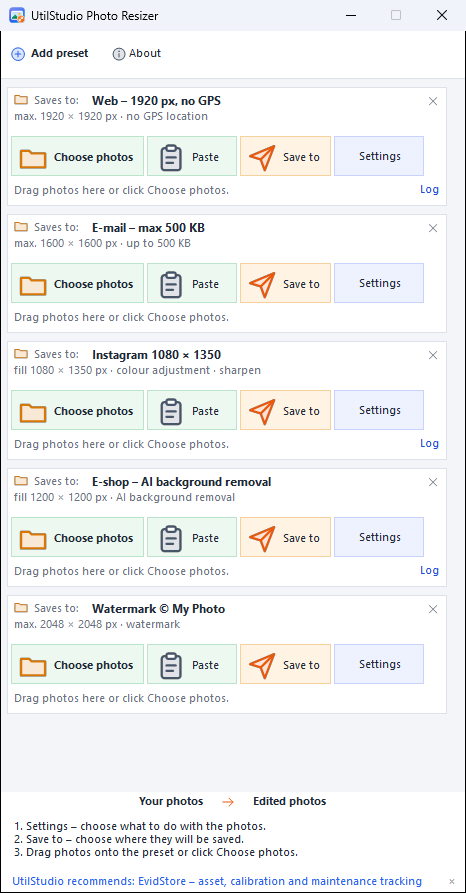
- Settings – choose what to do with the photos (size, AI, watermark, rename…). Each preset shows a one-line summary such as max. 1920 × 1920 px · no GPS location.
- Save to – choose a folder, FTP server, e-mail or clipboard.
- Drop photos on the preset or click Choose photos. Done – the log shows every file and its new size.
Keep several presets side by side – for example Web 1920 px, E-mail max. 500 KB, Instagram 1080 × 1350 and E-shop with white background – and use the right one with a single drag and drop.
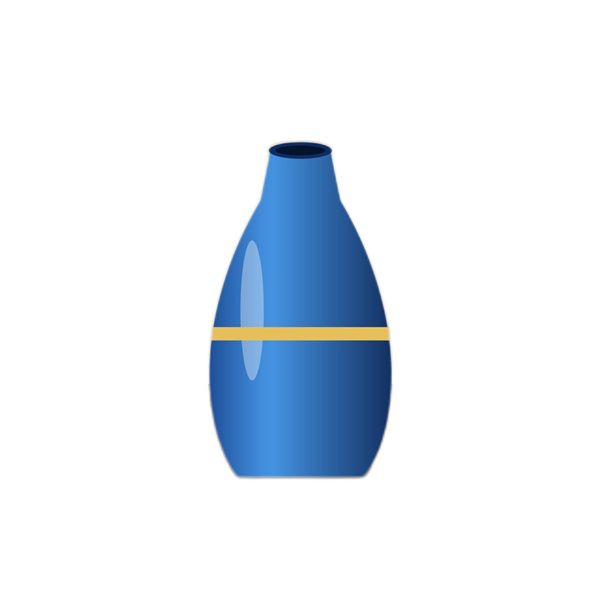
Example: product photo with AI background removal
The E-shop preset removed the background, placed the product on white and cropped it to a 1200 × 1200 px square. The file shrank from 225 KB to 41 KB. Everything ran offline on the computer.

Who uses it
- E-shops – uniform product photos with white background, exact size and SEO file names.
- Photographers – watermark, web previews and renaming of a whole shoot.
- Real estate and offices – smaller photos for listings, portals and e-mail, without the GPS location.
- Everyone – shrink holiday photos before sending them by e-mail or uploading them to social media.
Photo Resizer online – no installation
Need to resize a few photos right now? Use the free online tools – the photos are processed in your browser and never uploaded.
Frequently asked questions
Is UtilStudio Photo Resizer free?
Yes. Since version 1.3.30 the program is completely free – it adds no watermark, has no trial period and does not limit the number of photos.
Can I reduce photos to a specific size in KB?
Yes. In the preset settings turn on Max. JPG file size (KB) and enter e.g. 100, 200 or 500 KB. Photo Resizer finds the highest JPG quality that fits the limit.
Are my photos uploaded to the internet?
No. All processing, including AI background removal and AI upscaling, runs locally on your computer. Photos are sent only to the target you choose yourself (for example your FTP server or an e-mail).
How does AI background removal work?
The program uses the U²-Net model (fast) or IS-Net (more precise edges, downloaded on request, about 170 MB). The new background can be transparent, a chosen colour (e.g. white for e-shops) or a blurred version of the original.
Can it remove the GPS location from photos?
Yes. Turn on Remove GPS location from kept EXIF – the camera data stays, but the location is removed. You can also drop all EXIF data.
Can photos be processed automatically?
Yes. Turn on processing of new files in the source folder and Photo Resizer edits every photo that appears there and saves it to the chosen target.
Which Windows versions are supported?
Windows 10 and Windows 11, 64-bit. The setup installs .NET Framework 4.8 if it is missing.
What is the difference from the online Photo Resizer?
The online tools are great for a few photos without installation. The Windows program handles hundreds of photos, keeps your presets, adds AI, watermark, renaming, FTP and e-mail, and can watch a folder.
Download UtilStudio Photo Resizer free
Free for Windows 10 and Windows 11 (64-bit). No watermark, no time limit, no limit on the number of photos.