


Text or logo on every photo
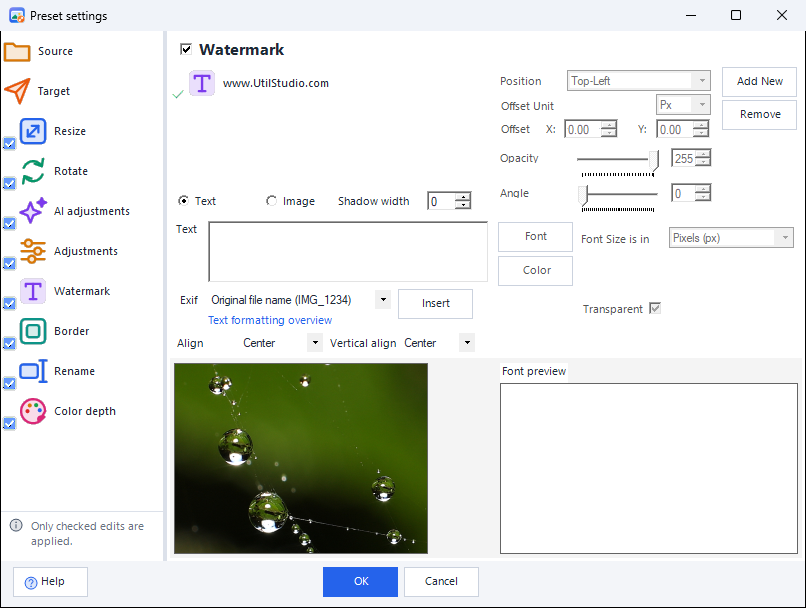
Tick Watermark to print one or more texts or images on every photo. The list at the top contains the items; Add New and Remove manage them.
Item
- Text or Image – a text (e.g. © My Photo 2026) or a picture such as your logo (PNG with transparency works best).
- Exif + Insert – inserts a value from the photo into the text: original file name, date taken, camera, lens, ISO… Text formatting overview explains the codes.
- Font, Color, Shadow width; Font Size is in Pixels (px) or % of picture height (the same look on large and small photos).
- Align and Vertical align of the text inside its box.
Placement
- Position – corner, edge or centre of the photo; Offset X/Y in px or percent.
- Opacity (0–255) – a semi-transparent watermark is less disturbing; 120–180 is common.
- Angle – e.g. a diagonal text across the photo.
The preview at the bottom shows the result on a sample photo.
Related topics
In the program, the Help button (main window and preset settings) and the F1 key in any window open the page for exactly the window – and the section of the settings – you are working in. Something missing? Write to us.