


Settings of the whole program
The Settings button in the toolbar of the main window (or Settings… in the menu of the notification area icon) opens the settings of the whole program. The presets are set separately, with the Settings button on each card.
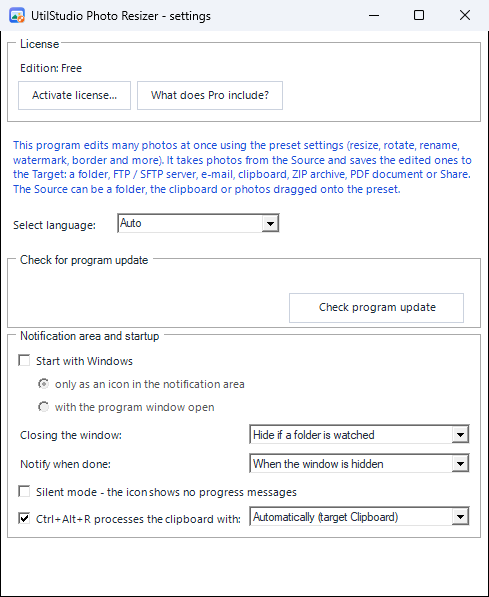
License
Shows the edition (Free, Pro trial or Pro). Activate license… enters a licence key; What does Pro include? opens the Pro window.
Language and update
Select language – Auto (by Windows), English, Slovak or Czech; the program restarts. Check program update looks for a newer version on the web.
Notification area and startup
- Start with Windows – only as an icon in the notification area or with the program window open.
- Closing the window – Hide if a folder is watched, Always hide to the notification area or Exit the program.
- Notify when done – Never, When the window is hidden, Always.
- Silent mode – the icon shows no progress messages.
- Ctrl+Alt+R processes the clipboard with – a chosen preset or Automatically (target Clipboard).
Related topics
In the program, the Help button (main window and preset settings) and the F1 key in any window open the page for exactly the window – and the section of the settings – you are working in. Something missing? Write to us.