


Working in the background
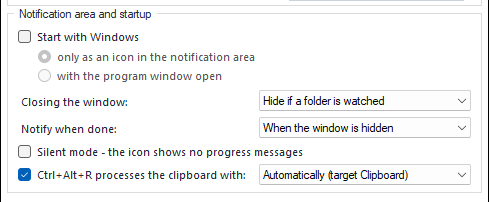
Photo Resizer can run as an icon in the notification area (next to the clock). The icon shows the progress, and a notification appears when a preset finishes.
Icon menu
- Open Photo Resizer – shows the main window.
- Process clipboard with – a screenshot or photos copied in File Explorer, with the chosen preset.
- Process files with – choose photos for a preset without opening the window.
- Log – the log of a preset.
- Pause folder watching, Silent mode, Settings…, Activate license…, Help, About, Exit.
Ctrl+Alt+R
Anywhere in Windows: take a screenshot with Win+Shift+S (or copy photos in File Explorer) and press Ctrl+Alt+R. With the target Clipboard the smaller image is back in the clipboard, ready to paste into a chat, e-mail or ticket. The preset for the shortcut is chosen in Program settings.
Related topics
In the program, the Help button (main window and preset settings) and the F1 key in any window open the page for exactly the window – and the section of the settings – you are working in. Something missing? Write to us.